.png)
Secure Sign-In Verification: What It Is and How It Works
Secure Sign-In Verification (For Users Without 2FA)
To help keep creator accounts secure, BackerKit has introduced an additional sign-in verification step for users who do not have two-factor authentication (2FA) enabled.
If you log in using a password and username and you do not have 2FA set up, you will be asked to confirm your login through a link sent to your email before you can access your account.
This extra step protects your project, funds, and backer data from unauthorized access.
How It Works
Here is what you will see when signing in without 2FA:
Step 1: Enter Your Email and Password
- Log in as usual through the BackerKit website - “backerkit.com.”
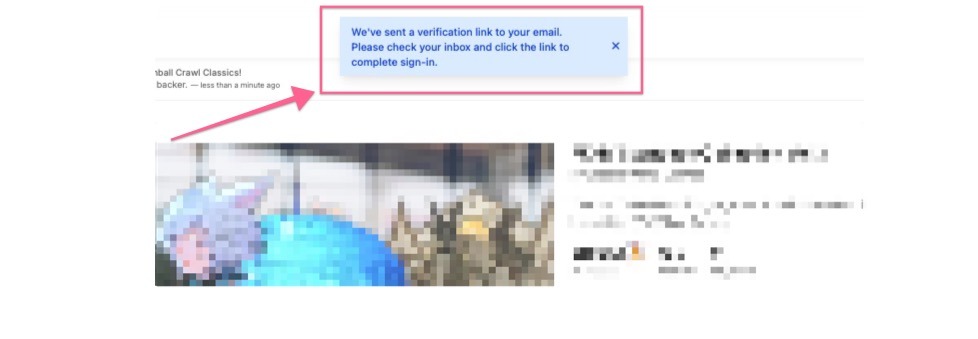
Step 2: Secure Email Verification Screen
- After attempting to log in, you will be pushed back to “backerkit.com” (the homepage) letting you know that a verification email has been sent.
-
The email may not be instant. Please be patient.
Step 3: Check Your Inbox
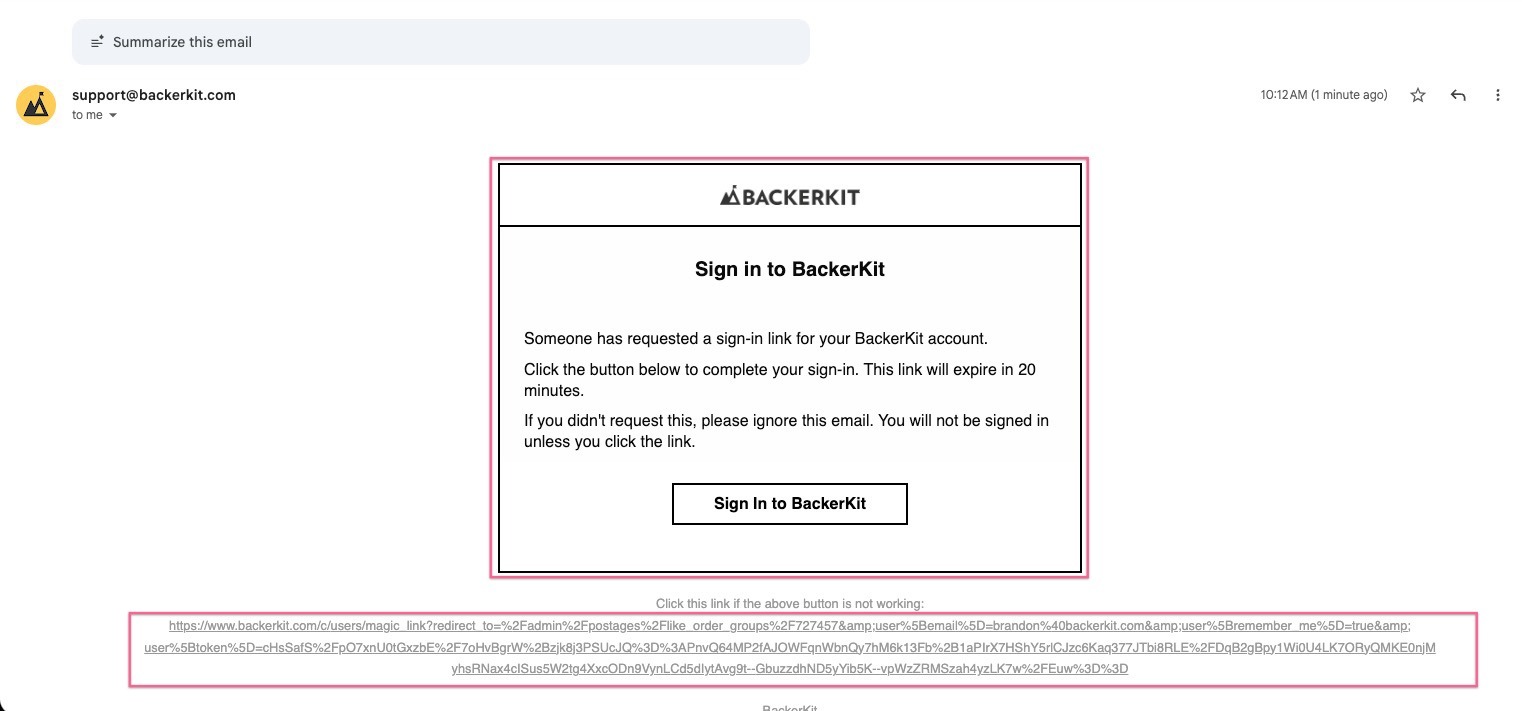
- The email will contain a secure link. Click the link to verify that you are the account owner. The link expires within 20 minutes.
-
The email address is from “support@backerkit.com but it’s sending from “s.backerkit.com.” Please whitelist both, which allows emails from those addresses.
Step 4: Continue Into BackerKit
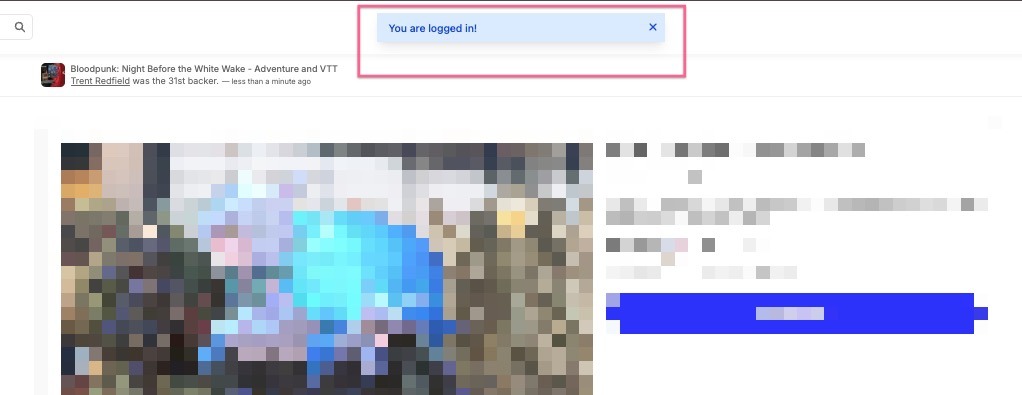
- Once verified, you will be automatically logged in and can continue managing your project as usual.
-
You only need to complete this step during active logins. If you remain logged in, you will not be asked to verify again.
Skip the Email Step by Enabling 2FA
Creators who enabled two-factor authentication will not see the email verification process. 2FA provides better protection and a faster login experience.
- To enable 2FA, follow our step guide here.
Frequently Asked Questions
Do I have to complete this every time I log in
Only when logging in through the password screen. If you stay logged in, you will not see the verification screen again until your session expires.
Why am I seeing this but my teammate is not?
Teammates who have 2FA enabled will not see the email verification screen. The extra step only applies to accounts without 2FA.
What if the email does not arrive?
Check your spam or promotions folder. The email is from “s.backerkit.com” & “support@backerkit.com” If you still cannot locate it, you may need to whitelist those emails and reach out to hello@backerkit.com for assistance.
Will 2FA remove the email verification step?
Yes. Once you enable 2FA, you will log in with your authenticator code, and you will not see the email verification step.
Can I disable this?
No. Email verification is required for accounts without 2FA enabled.