.png)
How to Integrate Discord
BackerKit's Discord integration offers several ways for you to reward your Discord members, drive Discord memberships, and boost pledges within your live BackerKit campaign.
Create Discord-exclusive pledge tiers. Lock any pledge tier and make it available only to your server's members. Backers click Verify with Discord, sign in, and the tier unlocks instantly if they're a member. If they're not, they'll get a link to join, then can re-check their membership in one click to back the tier.
Automatically grant Discord roles with BackerKit’s Discord bot. After you install the BackerKit’s Discord bot on your server, you can match select pledge tiers to Discord roles. When a backer pledges at a matched tier and connects their Discord, the bot grants them the role you’ve specified in your server, so your most dedicated supporters are recognized the moment they back.
Roles stay accurate, too. If a pledge is refunded or a payment fails, the role is removed automatically.
Offer bonus incentives for Discord members. Outside of, or in addition to, creating an exclusive pledge tier, you can offer a Discord-exclusive bonus incentive - like a digital extra or an add-on. Backers who aren't members yet are invited to join your server to qualify. The connect-to-qualify bonus offer can be claimed until your campaign ends.
Invite backers to "Join the Discord" after every pledge. Right after pledging, each backer sees your Discord on their confirmation page, complete with your server name, member count, and a Join the Discord button. It's a simple but relevant invitation that turns the excitement of backing into a new community member.
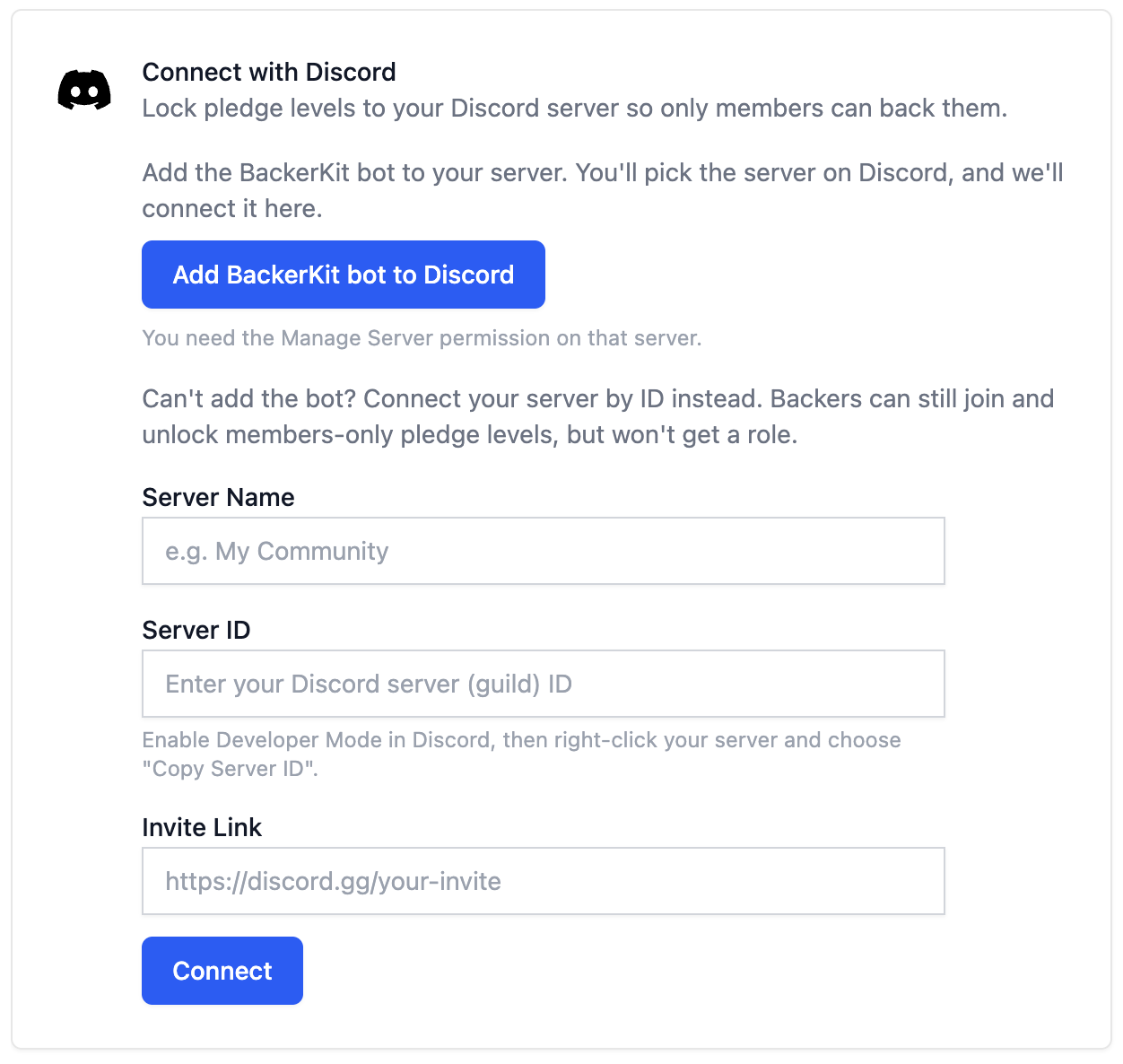
Connect your Discord server and add the BackerKit bot. You’ll need the Manage Server permission on your Discord server.
- Go to Integrations. In your project dashboard, go to your Project Details tab and click Integrations. If your project is already live, go to Basics, then click the Integrations tab.
- Add the bot. Under Connect with Discord, click Add BackerKit bot to Discord.
- Authorize in Discord. Pick your server, review the permissions, and click Authorize. You’ll return to BackerKit with your server marked Connected.
- Save an invite link if prompted. Paste your Discord invite link and click Save invite link so backers can join.
- Set the role order. In Discord, go to Server Settings → Roles and drag the BackerKit role above any role you want backers to receive.
Then go to Rewards → Pledge levels to lock tiers to your members and choose the role each one grants.
Can’t add the bot? Under Can’t add the bot? Connect your server by ID instead on the same tab, enter your server name, ID, and invite link, then click Connect. Backers can still unlock members-only tiers or receive incentives, but won’t get a role.
Contact crowdfunding@backerkit.com if you have any questions or need assistance setting up.