.png)
How Do I Remove or Replace Cards From My Account?
In order to fully remove a payment method in your BackerKit account, either due to your card expiring or an incorrect CVC, etc — jump to the relevant section to your situation below.
👉 JUMP TO: Expired Cards | Duplicate or Incorrect CVC/Date/Zip | Removal and Replacing Cards
→ Why was my old card still charged?
⚠️ Changing, replacing, or adding new cards or setting default cards won’t override or replace a card on existing surveys/pledges. Your next charge(s) will still be applied to the last payment method added, unless you update an existing pledge or survey individually. See below. Once the card is updated on the order itself, future charge attempts will then use the newly designated card.
→ Expired Cards:
- Go to your Account Settings → Scroll down to the ‘Payment Methods’ section

- Next to the expired card, select ‘Update.' You can update the date, add a new card, or replace the expired card with an existing payment method.
- To just update the date, input the corrected expiration date → "Update"
|
|
|


This will replace charges associated with the expired card. |
|

→ Duplicate cards, incorrect dates, CVC, zip:
If surveys haven't sent, it is necessary to add a new duplicated instance of the card with a corrected field (cvc, zip, etc). Follow the steps here to add a new corrected card.
👉🏽 First, you'll need to identify which copy of the card has the incorrect field.
- Go to your Account Settings
- Scroll down to the ‘Payment Methods’ section
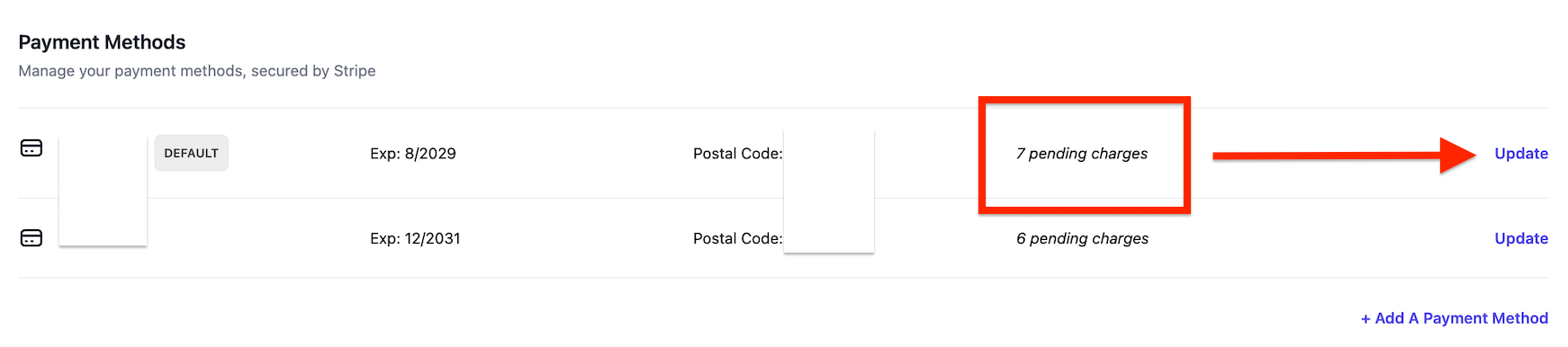
- Select ‘Update’ to to view the "Pending Payments" page
At this time, it's not possible to see which card is attached to which CVC. To locate the card with the wrong information, locate a known failed CVC pledge by finding the campaign name to confirm which card instance it's attached to.
- Follow the directions below to remove the errored card.
→ Removing and Replacing a Card:
You will first need to replace the payment individually for any pending charges attached to the card you want to remove. There is not a universal way to bulk replace or remove a card.
- Go to your Account Settings → Scroll down to the ‘Payment Methods’ section
- Next to the card you want to remove, select ‘Update’
- From there, you will be brought to a list of pending payments on that specific card entry.
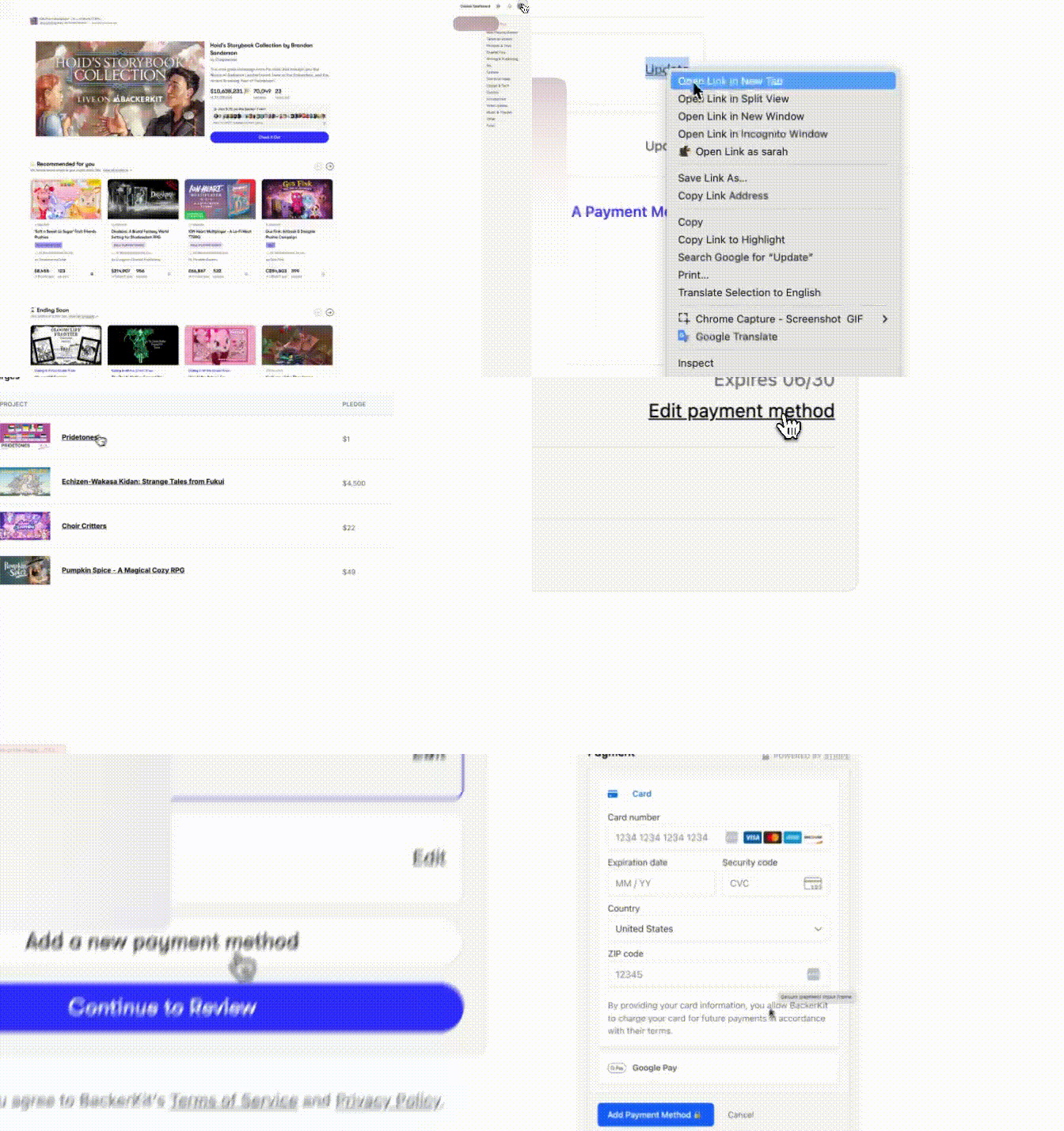
- Click each "Project Name" individually:
-
Each link will take you either to your pledge confirmation page, or your survey depending on the state of the project
-
- If the campaign is still live or has not yet sent surveys, at the bottom of your pledge, you can click "Edit Payment Method" (see above) to update your card. (View our full HelpDoc here):
- For surveys, scroll down to "Payment" and "Update Credit Card" to save your new payment method.

- You’ll need to use this flow to update the pending charge on each pledge/survey.
- You can access all surveys here, via confirmation & failed payment emails, or using the survey recovery tool.
- Once you update your payment method for each of these pending charges, you can head back into your account to remove the old card.
- Return to the "Update" page. Once all associated charges are removed, you’ll now see a red 'Remove Card' button on the "Pending Payments" page.
-
Once you select this, the card will be removed from your profile, and you're all set! :)
⚠️ If you have a preorder, or aren’t seeing an option to update your card, reach out to Backer Support and we can help!
What adding or replacing a card does:
(unless you're replacing an expired card):
- This payment method will now appear as a choice when pledging to a new campaign:

- The new card will be available in the drop-down for any new surveys. This drop-down will only appear the first time you visit a survey.

This will not update your card on any existing surveys or pledges.
👉 Still need help?
Please contact Support. If you do, please send over a full list or screenshot of your pending charges, and the last four digits of the card that you need removed.